Fabrics and swatches
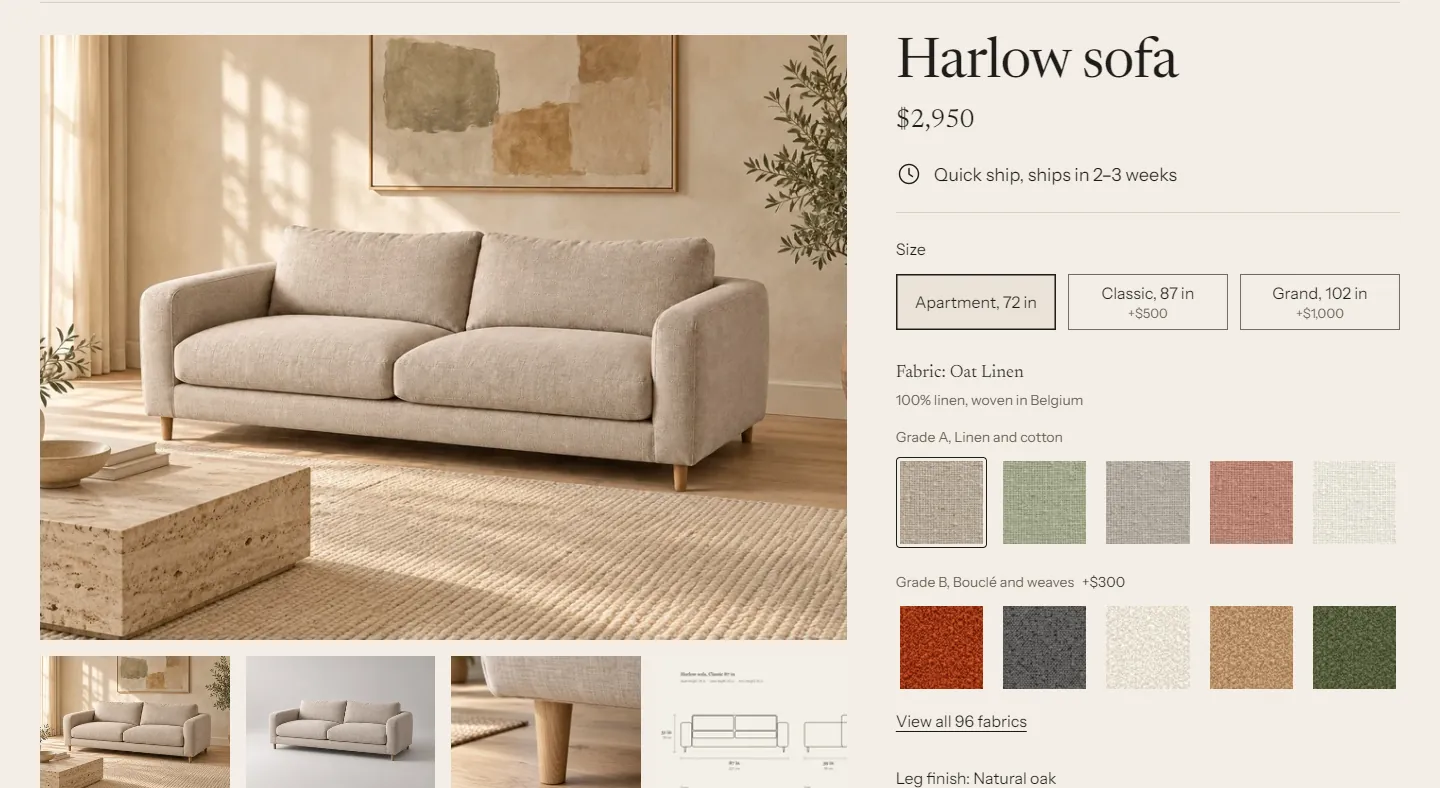
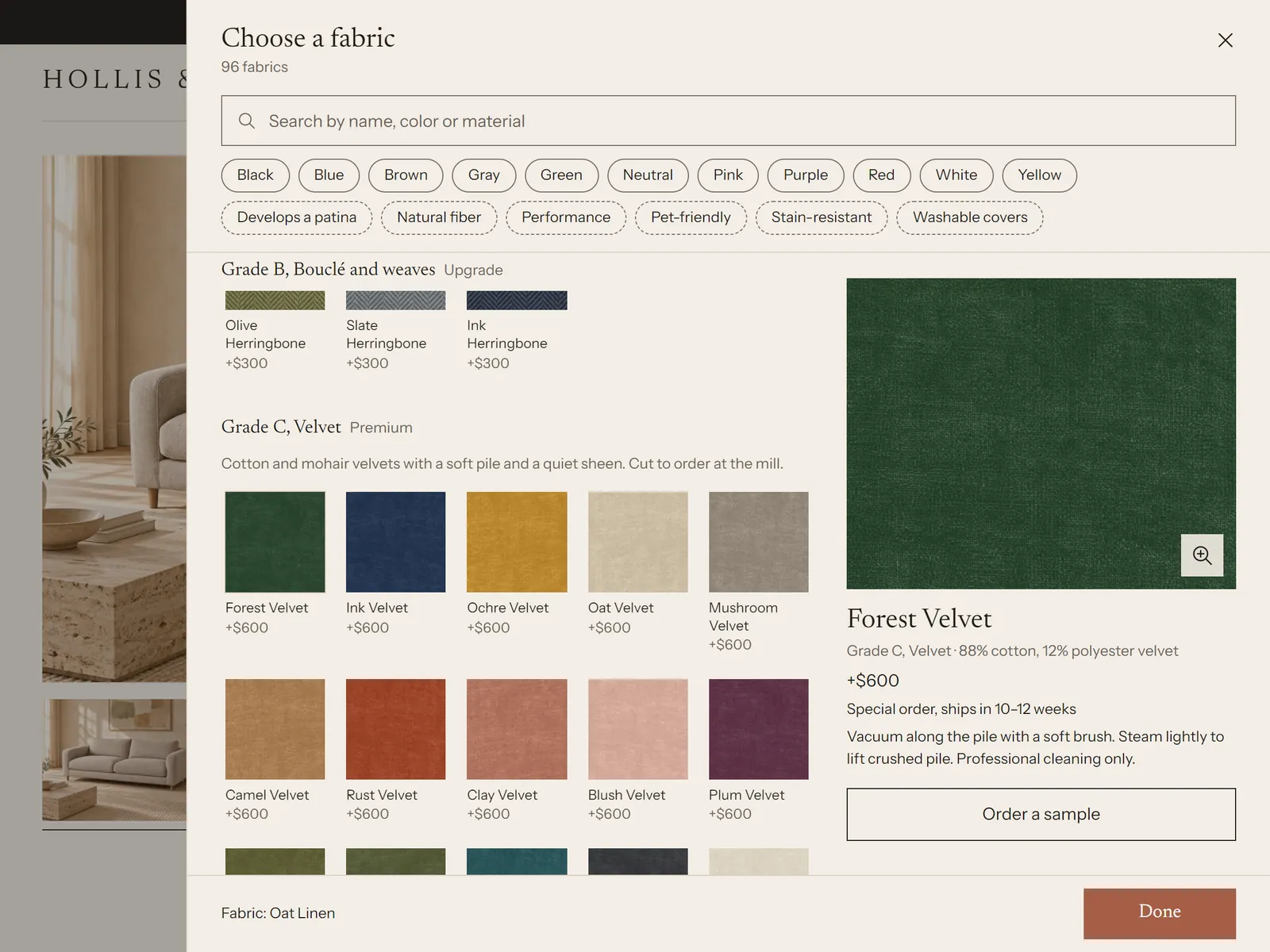
Tier 2. With fabric entries, the product page shows a fabric picker: swatches grouped by grade, the price difference per grade and per fabric, and a "View all fabrics" panel with search, color and feature filters, a large preview with zoom, care notes and a sample button.
How it fits together #
- You create one fabric entry per fabric you sell, with its name, swatch, grade, composition and care.
- Each fabric belongs to a grade entry ("Grade A, Performance linen"). Grades group the swatches and can carry a lead time.
- On each product, the Fabric option is linked to the product metafield
custom.fabrics. Shopify then creates one option value per fabric you pick, named after the fabric, and keeps the metafield in sync. - Weft reads the metafield, matches each option value to its fabric entry by name, and draws the picker.
One fabric entry serves every product and the sample product. Rename a fabric once and every product follows.
1. Create the definitions #
Create them in this order. The full field list is in the definitions reference.
Fabric grade #
- Go to Settings > Metafields and metaobjects. Under metaobject definitions, click Add definition.
- Name:
Fabric grade. Check that the type readsfabric_grade. - Add the fields: Name (Single line text, required), Sort order (Integer), Description (Multi-line text), Price note (Single line text), Lead time (Metaobject, one entry, Lead time).
- Check that Name is the display name (Shopify uses the first text field unless you change it). Tick Storefronts under Access, and click Save.
If you skipped lead times, create the Lead time definition first or leave out the Lead time field for now.
Fabric #
- Click Add definition again. Name:
Fabric. Check that the type readsfabric. Add the fields from this table. Check every key.
Field name Type Key Name Single line text, one value, required nameSwatch image File, one file, images only, required swatch_imageSwatch color Color swatch_colorLarge image File, one file, images only large_imageGallery File, list of files, images only galleryGrade Metaobject, one entry, Fabric grade gradeMaterial Single line text, one value materialColor family Single line text, list of values color_familyFeatures Single line text, list of values featuresComposition Single line text, one value compositionCare Rich text careLead time Metaobject, one entry, Lead time lead_timeSample variant Product variant, one variant sample_variant- Check that Name is the display name. Shopify uses the first text field unless you change it, so add Name first. This matters: linked option values take their names from the display name.
- Tick Storefronts under Access, and turn on Active-draft status.
- Click Save.
The product's fabric list #
- Go to Settings > Metafields and metaobjects > Products and click Add definition.
- Name:
Fabrics. Namespace and key:custom.fabrics. - Select type > Metaobject, choose List of entries, and pick the Fabric definition.
- Tick Storefronts under Access. Click Save.
2. Add grades and fabrics #
Go to Content > Metaobjects > Fabric grade and add your grades, for example:
Name Sort order Price note Lead time Grade A, Performance linen 1 Included Made to order, 6–8 weeks Grade B, Bouclé and weaves 2 From +$300 Made to order, 6–8 weeks Grade C, Velvet 3 From +$600 Special order, 10–12 weeks - Go to Content > Metaobjects > Fabric and click Add entry for each fabric. Fill in at least Name, Swatch image and Grade. Keep the status Active.
Fabric names must be unique, because the theme matches by name. "Oat Linen" and "Oat linen" count as different names.
3. Link the Fabric option #
Do this once per product. You can't do it with a product CSV import: Shopify imports a linked custom metafield column as a plain text option.
New product #
- Open the product in Products.
- In the Variants card, click Add options like size or color.
- Option name:
Fabric. - Click the connect icon next to the option name (the dynamic source icon), and choose Fabrics (
custom.fabrics). - Select the fabrics this product comes in. Their order here is the order shoppers see.
- Click Done, then add your other options, such as Size or Leg finish.
- Set prices for each variant. Fabrics in a more expensive grade need higher variant prices: Weft shows "+$300" by comparing variant prices, so the price difference has to exist in the variants.
- Click Save.
Existing product with a plain-text Fabric option #
Shopify can't mix linked and plain values in one option. Connecting the option replaces its values with fabric entries. Try it on a duplicate of the product first, then check variant prices, SKUs and inventory before you do it on the live product.
After linking #
custom.fabricsfills itself in the same order as the option values. You can't edit it directly; change the option instead.- Adding a fabric to the product: edit the option and select the new entry.
- Renaming a fabric entry renames the option value on every product. On products with hundreds of variants this can take up to two minutes.
- A product can list up to 250 fabrics. That's the most the theme can read for one product. Larger ranges: split them across products, for example by grade.
4. Check the picker settings #
In the theme editor, open Theme settings > Fabrics and samples:
- Fabric option names: comma-separated option names that use the fabric picker. The default is "Fabric, Upholstery, Material, Finish, Cushion fabric". Matching ignores capitals. If a product has two matching options, the first one uses the picker.
- Fabric list metafield:
custom.fabricsunless your data uses another key. - Fabric metaobject type:
fabricunless your definition has another type.
Then open a product page and click the Variant picker block in the Product section:
- Swatches per row: 4 to 8.
- Swatches per grade: how many swatches each grade shows on the page before "View all".
- Grades shown on the page: 1 to 4. The selected fabric's grade always shows.
- Show sample buttons and Button label: see samples.
What shoppers see #
- "Fabric: Oat Linen" with the composition below it.
- Grade headings with the price difference against the selected variant, for example "Grade B, Bouclé and weaves +$300".
- Fabrics that aren't available in the current combination look crossed out but stay selectable. If a combination doesn't exist, the page says "Not available in this combination" and the add to cart button reads "Unavailable".
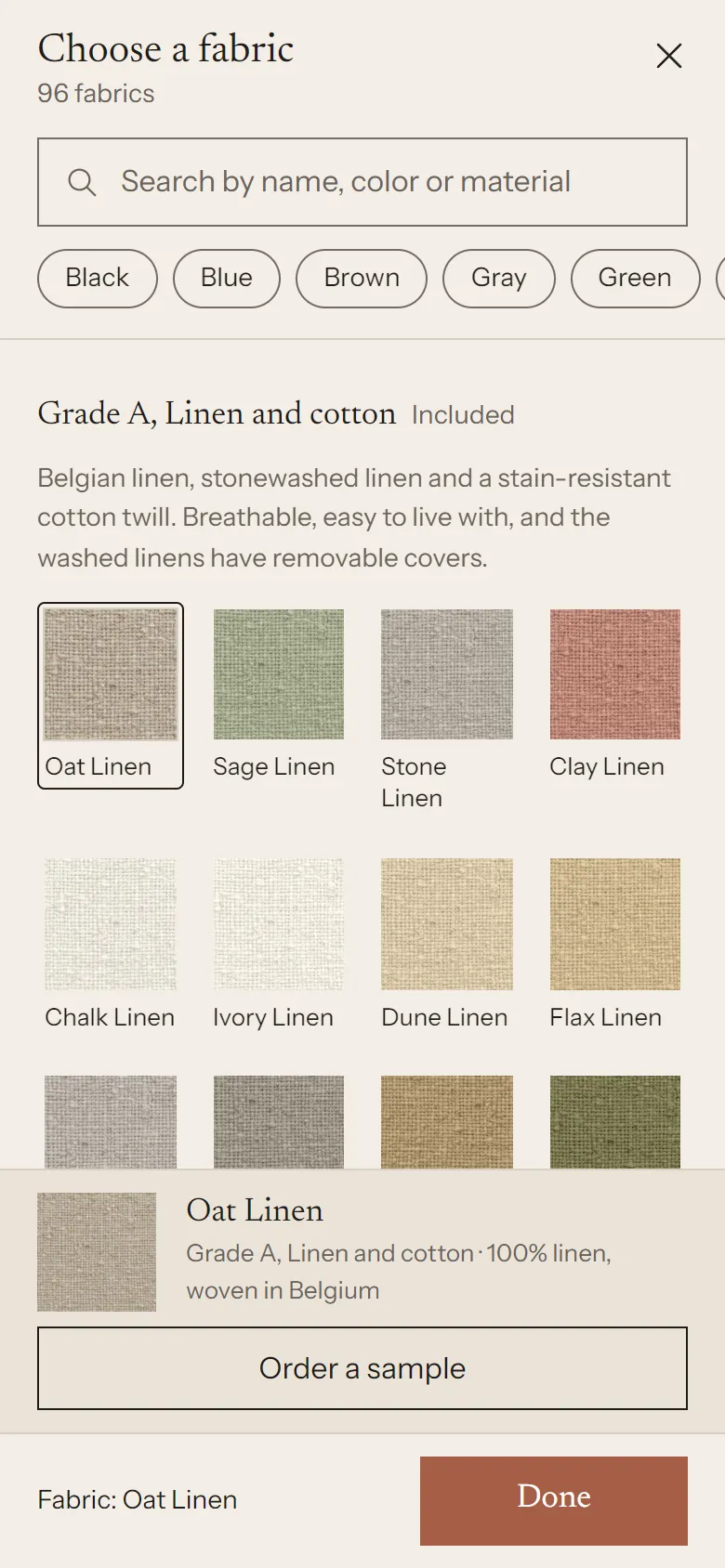
- View all 150 fabrics opens a side panel on desktop and a full-screen sheet on phones. It loads only when opened, so it doesn't slow down the page.
- Product cards on collection pages show the first fabric swatches and "+145" for the rest. The number shown is set in Theme settings > Product cards > Swatches to show.
Other places that use fabrics #
- Fabric strip section: a row of swatches with a heading and buttons, for the home page. Set Fabrics from a product to show that product's fabrics in order, or leave it empty to show the first entries of your fabric list.
- Hero section, layout "Text, image and material grid": a grid of swatches beside the image, from Fabrics from a product.
- Heading blocks: type
[fabric_count]to show your number of fabrics, rounded down to ten, for example "Over 140 fabrics". Until you have fabric entries, the heading reads "Choose your fabric". - Fabric library page: every fabric, grouped by grade, with sample buttons.
- "Materials and care" detail row: the selected fabric's swatch, grade, composition, features and care. See dimensions and detail rows.
Without fabric entries (tier 0) #
Options that aren't linked to custom.fabrics render as buttons. If you connect an option to one of Shopify's category metafields, such as Color, and the values have swatch images or colors, Weft shows those swatches instead. This works with no setup in the theme, but there are no grades, no fabric panel and no samples.
Troubleshooting #
- The product shows plain buttons instead of swatches. Check that the option name is in Fabric option names, that the option is linked to
custom.fabrics, and that the Fabric definition has Storefronts access. In the theme editor, an unconnected picker shows the note "Connect fabrics to show the fabric picker". - One fabric shows as a text button. Its entry is set to Draft, or the option value name doesn't match any fabric name. Set it to Active.
- Swatches show but no grade headings. The fabrics have no Grade, so they show in one group.
- "+$300" doesn't show. The variants for that fabric have the same price as the selected one.