Dimensions and detail rows
Furniture shoppers check measurements before anything else. Weft reads them from dimension metafields and can show them in centimeters and inches at once. The Product details section below the product adds collapsible rows for the description, dimensions, materials and care, delivery, and your own text.
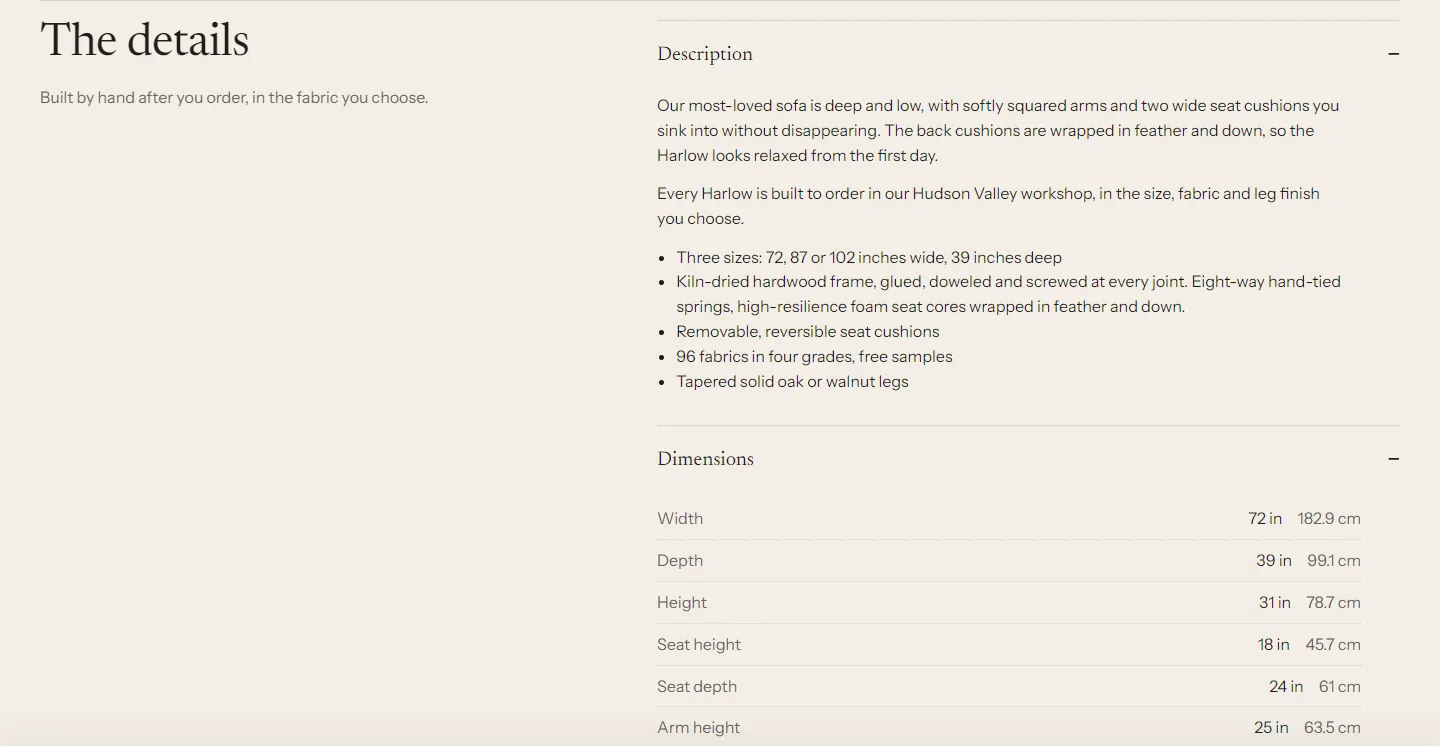
Dimension metafields #
Create these in Settings > Metafields and metaobjects > Products > Add definition, each with type Dimension and Storefronts access. Create only the ones you use.
| Name | Namespace and key | Read by |
|---|---|---|
| Width | custom.width | Dimensions block, Dimensions detail row |
| Depth | custom.depth | Dimensions block, Dimensions detail row |
| Height | custom.height | Dimensions block, Dimensions detail row |
| Seat height | custom.seat_height | Dimensions detail row |
| Seat depth | custom.seat_depth | Dimensions detail row |
| Arm height | custom.arm_height | Dimensions detail row |
Then open each product and fill in the values in the Metafields card. A dimension value has a number and a unit, for example 220 and cm.
Dimensions per size #
If a product comes in sizes, give each size its own measurements with variant metafields:
- Go to Settings > Metafields and metaobjects > Variants > Add definition.
- Create
custom.width,custom.depthandcustom.height(or any of the six keys above) with type Dimension and Storefronts access, the same keys as on products. - Open the product, click a variant, and fill in its values in the Metafields card.
Weft reads each measurement from the selected variant first and falls back to the product's own value. You only need variant values for the measurements that change. For example, give the product a depth and height, and give each size variant its width. When a shopper picks another size, the Dimensions block and the Dimensions detail row update with it.
Dimensions block #
A compact line in the buy column, for example "W 220 × D 98 × H 78 cm". On the product page, click the Dimensions block in the Product section:
- Heading: optional.
- Units: As entered shows the unit you typed. Metric and imperial adds the other unit: centimeters, millimeters and meters convert to inches, inches and feet convert to centimeters.
- Text when the product has no dimensions: for example "Made to your measurements. Contact us." Leave empty to hide the block on products without dimensions.
The block shows the selected variant's measurements, as described in dimensions per size.
Product details section #
The section has a heading column on the left (heading, text and an optional image) and detail rows on the right. Each row is a Detail row block. Pick what it shows in Content:
| Content | Shows |
|---|---|
| Product description | The product description from the admin. |
| Dimensions | Width, depth, height, seat height, seat depth and arm height, in the Units you choose, and an optional Dimension drawing. |
| Materials and care (from the selected fabric) | The selected fabric's swatch, grade, composition, features and care. Updates when the fabric changes. |
| Delivery and assembly | Your text, plus the live lead time if Show the lead time is on. |
| Custom text | Only the row's text. |
Every row also has Heading, Text and Open by default. The text shows below the row's own content.
Text that differs per product #
Any row's Text can come from a product metafield:
- Create a product metafield definition, for example
custom.care_noteswith type Rich text or Multi-line text. - In the theme editor, click the row, then the connect icon next to Text, and choose the metafield.
Products without a value show only the row's own content. A row with nothing to show is hidden on the live store.
A drawing per product #
The Dimension drawing setting is one image for the template. To show a different drawing per product, create a product metafield with type File (images only), fill it in on each product, and connect Dimension drawing to it with the connect icon.
Troubleshooting #
- No measurements show. Check the keys (
custom.width, notcustom.product_width), that the type is Dimension and not text, and that the product has values. - The measurements don't change with the size. Check that the variant definitions use the same keys as the product ones and have Storefronts access, and that the selected variant has values. A variant without its own value shows the product's.
- The Dimensions row is missing on some products. The row shows when the product or its first variant has a value. Fill in the product's own values as the fallback.
- Only one unit shows. Set Units to Metric and imperial. Yards aren't converted.
- The Materials and care row is empty. The product doesn't use the fabric picker, or the fabric has no composition, features or care. Add text to the row for products without fabrics.