Lead times
Tier 1. Lead times tell shoppers when a made-to-order piece arrives. Treadle turns each lead time into dates counted from today, in one format everywhere: "Arrives 24 Nov – 8 Dec", or "Arrives 1–15 Dec" within one month. The dates follow the selected size and fabric, and move when a shopper picks a slower fabric grade.
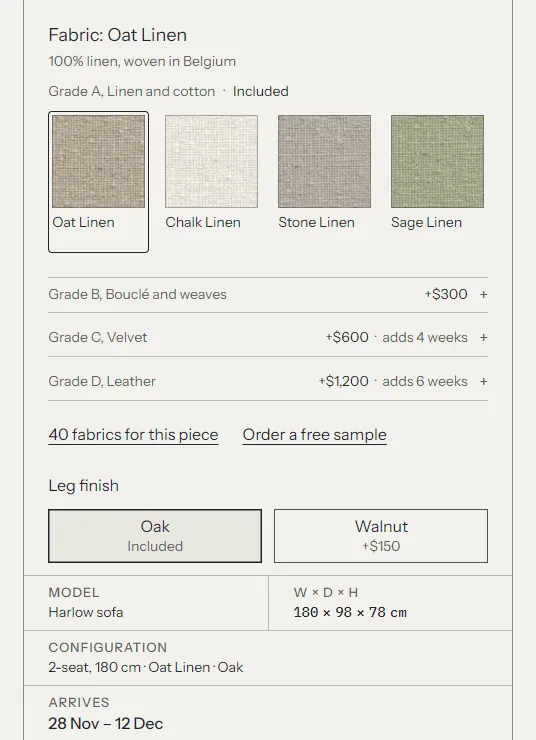
Where lead times show #
| Place | What it shows | Setting |
|---|---|---|
| Product page, title block | The Arrives field, for example "24 Nov – 8 Dec" | Title block fields block |
| Product page, fabric picker | Each slower grade's "adds 4 weeks" | Always on, when grades have lead times |
| Product page, Delivery and assembly row | The arrival, with the lead time's label under it ("Built in modules, 10–12 weeks") | Detail row: Show the lead time |
| Sticky add to cart bar | "Arrives 24 Nov – 8 Dec" | Sticky add to cart block: Show lead time |
| Product cards and To scale rows | The arrival of the variant the card shows | Theme settings > Product cards > Show lead time |
| Cart drawer and cart page, per line | "Arrives 24 Nov – 8 Dec", worked out again on every cart view | Always on |
| Cart drawer and cart page, notes | The order's arrival in the Arrives cell, and "Ships together when Wren lounge chair is ready" when one piece holds up the rest. On the cart page, the Lead time note under the dates: "The dates are estimates, from each piece's lead time." | Cart section: Show the longest lead time. Cart drawer: Theme settings > Cart > Show the longest lead time in the cart drawer |
| Order in your admin and at checkout | Line item property "Lead time: 6–8 weeks" | Theme settings > Lead times > Save lead time on the order |
| Order in your admin | Cart attribute "Longest lead time" | Theme settings > Lead times > Save the longest lead time on the order |
| Order confirmation email | Both of the above | Needs the email snippet |
How the arrival is worked out #
Arrives = the base lead time + the weeks the selected fabric's grade adds.
- The base is the selected variant's
custom.lead_time, if it has one (a size that takes longer). Otherwise it's the product'scustom.lead_time. - The grade adds its lead time's Min weeks less the product's Min weeks, never less than 0. A fabric's own Lead time field, when filled in, counts instead of its grade's.
- Without a product or variant lead time, the grade's lead time is used on its own.
- Without any of them, the theme shows Theme settings > Lead times > Default lead time. It's empty by default, so a piece with no lead time shows no arrival at all.
The dates count Min weeks and Max weeks from today. A lead time entry without weeks shows its label instead of dates.
Examples, with the product set to "Made to order, 6–8 weeks":
- Grades A and B have no lead time. They add nothing: "Arrives 24 Nov – 8 Dec".
- Grade C, Velvet, is set to "Special order, 10–12 weeks". It adds 4 weeks. The folded grade row reads "Grade C, Velvet · +$600 · adds 4 weeks", and picking a velvet moves Arrives to "22 Dec – 5 Jan".
- The Corner size takes longer. Give the Corner variants "Special order, 10–12 weeks". The grades add their weeks on top of that.
A grade can't make a piece arrive sooner than its base. The rows always count from the product's lead time, so they don't change with the selection. How grades add weeks has a full table.
Product cards use the same rule for the variant the card shows, the cheapest one. Cards show the default lead time only if you turn on Use the default lead time when none is set.
Set up lead times #
1. Create the Lead time metaobject definition #
- In your admin, go to Settings > Metafields and metaobjects.
- Under metaobject definitions, click Add definition.
- Name:
Lead time. Check that the type below the name readslead_time. Click Add field four times and add these fields:
Field name Type Key Label Single line text, one value. Tick Required labelMin weeks Integer min_weeksMax weeks Integer max_weeksNote Multi-line text note- Check that Label is the display name. Shopify uses the first text field unless you change it.
- Under Access, tick Storefronts.
- Click Save.
2. Create the two metafield definitions #
- Go to Settings > Metafields and metaobjects > Products and click Add definition.
- Name:
Lead time. Namespace and key:custom.lead_time. - Click Select type, choose Metaobject, keep One entry, and pick the Lead time definition.
- Under Access, tick Storefronts. Click Save.
- Go back, click Variants, and create the same definition there: name
Lead time, keycustom.lead_time, Metaobject, one entry, Lead time.
3. Add lead time entries #
- Go to Content > Metaobjects > Lead time and click Add entry.
Fill in the fields, for example:
Label Min weeks Max weeks Note In stock, ships in 1–2 weeks 1 2 Made to order, 6–8 weeks 6 8 Built by hand in our workshop after you order. Special order, 10–12 weeks 10 12 Velvets are cut to order. Built in modules, 10–12 weeks 10 12 - Click Save. A few entries are usually enough. When your workshop gets busier, edit one entry and every product using it changes.
The label shows under the arrival in the Delivery and assembly row, so a label that gives a reason ("Hand-shaped shell, 10–12 weeks") tells shoppers why a piece takes longer.
4. Give products a lead time #
- Open a product in Products.
- In the Metafields card, click Lead time and choose an entry.
- Click Save.
To change many products at once, select them in the product list, click Bulk edit, and add the Lead time column.
5. Give slower grades a lead time #
If you use fabrics, open each grade that takes longer in Content > Metaobjects > Fabric grade and choose its lead time. Leave the included grades empty.
Theme settings #
In the theme editor, open Theme settings > Lead times:
- Default lead time: used when the variant, the product and the fabric's grade have no lead time. It's plain text, empty by default, so a product without a lead time shows no arrival. Fill it in only if it's true of every such product, for example "Made to order" or "Made to order. Ships in 8–10 weeks". Plain text has no weeks, so it shows as written, not as dates.
- Save lead time on the order:
- Visible at checkout (Lead time): the shopper sees "Lead time: 6–8 weeks" under the item at checkout, and it's on the order. The weeks include what the fabric's grade adds.
- Admin only (_lead_time): saved on the order but hidden at checkout. You see it in the admin.
- Don't save: nothing is added to the order.
- Save the longest lead time on the order: adds a "Longest lead time" cart attribute. It shows under Additional details on the order in your admin.
Lead time block #
The product templates show the arrival in the title block's Arrives field. If you want it as a line of its own instead, add a Lead time block to the Product section:
- Show estimated ship dates: adds "Estimated to ship Nov 20 to Dec 4" under the arrival. Off by default.
- Show the lead time note: shows the entry's Note under the arrival.
- Rule below: a thin line under the block.
The dates don't account for holidays or your cut-off time, so treat them as a guide.
Troubleshooting #
- The product page shows no arrival, or the default text instead of dates. Check that the Lead time definition has Storefronts access, that the metafield on the product points to an entry, and that the entry has Min weeks and Max weeks.
- A velvet doesn't move the date. The grade has no lead time, or its Min weeks aren't more than the product's.
- One fabric arrives sooner than the others in its grade. That fabric has a lead time of its own. Clear its Lead time field.
- Two fabrics of the same size disagree. One of the variants has a stray lead time of its own. Clear the variant's
custom.lead_time. - The cart says one thing and the order another. The cart works out the arrival again on every view. The order keeps the value saved when the item was added to the cart. If you changed a lead time in between, they differ.