Dimensions and details
Width, depth and height do most of the work in Treadle. They draw the product, check it against the shopper's wall, room and doorway, fill the title block's W × D × H field and the Dimensions detail row, and place the piece in every lineup, room view and cart drawing. This page covers the dimension metafields, sizes with their own dimensions, and the detail rows under the product.
Dimension metafields #
Create these in Settings > Metafields and metaobjects > Products > Add definition, each with type Dimension and Storefronts access.
| Name | Namespace and key | Read by |
|---|---|---|
| Width | custom.width | Drawings, fit checks, the title block, the Dimensions detail row and block |
| Depth | custom.depth | Drawings (side view and plan), room and doorway checks, the title block, the Dimensions row and block |
| Height | custom.height | Drawings, ceiling and doorway checks, the title block, the Dimensions row and block |
| Seat height | custom.seat_height | Dimensions detail row |
| Seat depth | custom.seat_depth | Dimensions detail row |
| Arm height | custom.arm_height | Dimensions detail row |
Then open each product and fill in the values in the Metafields card. A dimension value has a number and a unit, for example 220 and cm. Millimeters, meters, inches, feet and yards work too.
Width, depth and height are the overall size, including arms and legs. For a pendant, width is the shade's diameter and height is the shade's height; the drop is a separate metafield. See drawings for the drawing type and shape settings, and the definitions reference for every drawing and fit field.
A product without a width or a height has no drawing and no fit check. Its product page leaves the full drawing out, and the theme editor shows a note there: "This product has no width and height, so its drawing is hidden on your store." A variant with dimensions still draws when the shopper picks it.
Dimensions per size #
If a product comes in sizes, give each size its own measurements with variant metafields:
- Go to Settings > Metafields and metaobjects > Variants > Add definition.
- Create
custom.width,custom.depthandcustom.heightwith type Dimension and Storefronts access, the same keys as on products. For pendants, alsocustom.drop. - Open the product, click a variant, and fill in its values in the Metafields card. To fill in many variants at once, use the bulk editor. See variants, import and bulk editing.
Treadle reads each measurement from the selected variant first and falls back to the product's own value. You only need variant values for the measurements that change. For example, give the product a depth and height, and give each size variant its width.
When a shopper picks another size, the drawing, the fit lines, the title block and the Dimensions row update together. The theme treats an option as the size option when its values' variants differ in width or drop. Options with more than 12 values, such as fabrics, are never the size option.
Name sizes with their width, for example "2-seater, 180 cm". Fit lines that suggest a smaller size use the part before the comma: "See the 2-seater".
The title block fields #
The Title block fields block in the buy column shows ruled fields for Model (the product title), Configuration (the selected options), W × D × H (from the dimension metafields) and Arrives (the arrival dates). It has one setting, Show the model.
The details #
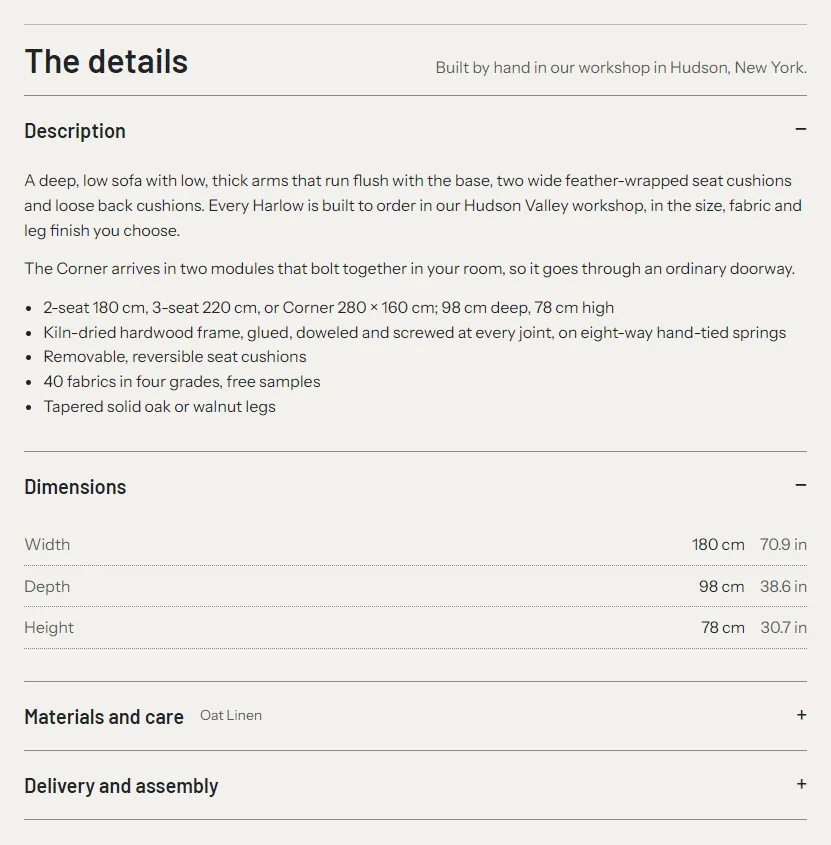
The product templates show the details under the drawing in the media column on desktop, and after the drawing on phones. They're the Product details block, which is part of the Product section, with a heading, text and Detail row blocks. The Description and Dimensions rows open by default.
The templates leave the block's text and the delivery row's text empty, because one template serves every product. The delivery row then shows the arrival dates and the lead time's label, or hides when the product has no lead time. The lighting templates' delivery row says "A hardwired light is installed by a qualified electrician. A lamp plugs straight in." Write your own delivery terms into the row, or connect it to a product metafield (see below).
The product.simple template uses the Product details section instead, under the Product section. It has the same rows, plus an optional image under the heading. Its Materials and care and Delivery and returns rows ship empty.
Each Detail row picks what it shows in Content:
| Content | Shows |
|---|---|
| Product description | The product description from the admin. |
| Dimensions | Width, depth, height, seat height, seat depth and arm height, in the Units you choose, and an optional Dimension drawing image. |
| Materials and care (from the selected fabric) | The selected fabric's swatch, grade, composition, features and care. Updates when the fabric changes. |
| Delivery and assembly | Your text, plus the arrival dates and the lead time's label if Show the lead time is on. |
| Custom text | Only the row's text. |
Every row also has Heading, Text and Open by default. The text shows below the row's own content.
The Dimensions row's Units setting: As entered shows the unit you typed; Metric and imperial adds the other unit. It reads custom.width, depth, height, seat_height, seat_depth and arm_height, from the selected variant first.
Text that differs per product #
Any row's Text can come from a product metafield:
- Create a product metafield definition, for example
custom.care_noteswith type Rich text or Multi-line text. - In the theme editor, click the row, then the connect icon next to Text, and choose the metafield.
Products without a value show only the row's own content. A row with nothing to show is hidden on the live store.
A drawing per product #
The theme draws every product for you. If you also have your own technical drawing, upload it to the product's custom.drawing metafield. It replaces the product page's full drawing. See your own drawing.
The Dimensions row's Dimension drawing setting is one image for the whole template. Leave it empty unless every product on the template shares a drawing.
Dimensions block #
A compact line, for example "W 220 × D 98 × H 78 cm". The default product templates show the size in the title block instead; the product.simple template uses this block.
- Heading: optional.
- Units: As entered or Metric and imperial.
- Text when the product has no dimensions: for example "Made to your measurements. Contact us." Leave empty to hide the block on products without dimensions.
Troubleshooting #
- No measurements show. Check the keys (
custom.width, notcustom.product_width), that the type is Dimension and not text, and that the product has values. - The measurements don't change with the size. Check that the variant definitions use the same keys as the product ones and have Storefronts access, and that the selected variant has values. A variant without its own value shows the product's.
- The drawing is far too big or too small. A value has the wrong unit, for example 220 in instead of 220 cm.
- The Dimensions row is missing on some products. The row shows when the product or its first variant has a value. Fill in the product's own values as the fallback.
- The Materials and care row is empty. The product doesn't use the fabric picker, or the fabric has no composition, features or care. Add text to the row for products without fabrics.